Help Docs
How to Create a New Job Opening
Job Opening Details Tab
This tab is where you define the role and provide the information iRankr needs to evaluate incoming resumes.
Required fields:
•Account e.g. IntelliSQR
•Company Description A brief summary of account or company
•Designation The job title for the opening
•Department The team or department this role belongs to

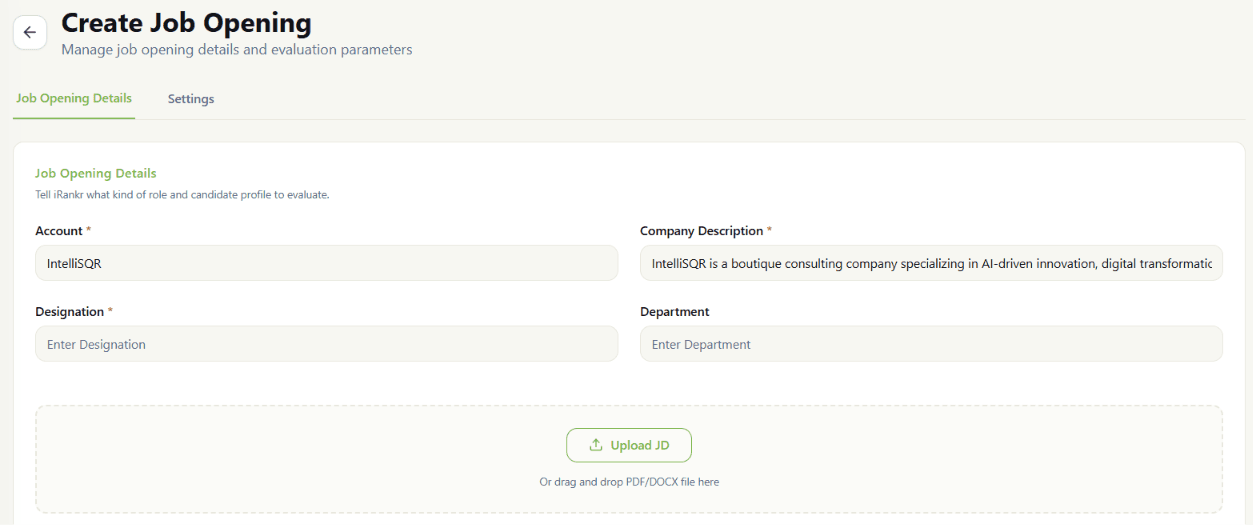
Uploading a Job Description
You can upload an existing Job Description file directly using the upload area on the form. iRankr accepts PDF and DOCX formats. Simply drag and drop the file into the upload zone, or click Upload JD to browse and select the file from your device.
Note: Once a JD is uploaded, iRankr will extract the relevant details automatically.
Filling in Job Requirements Manually
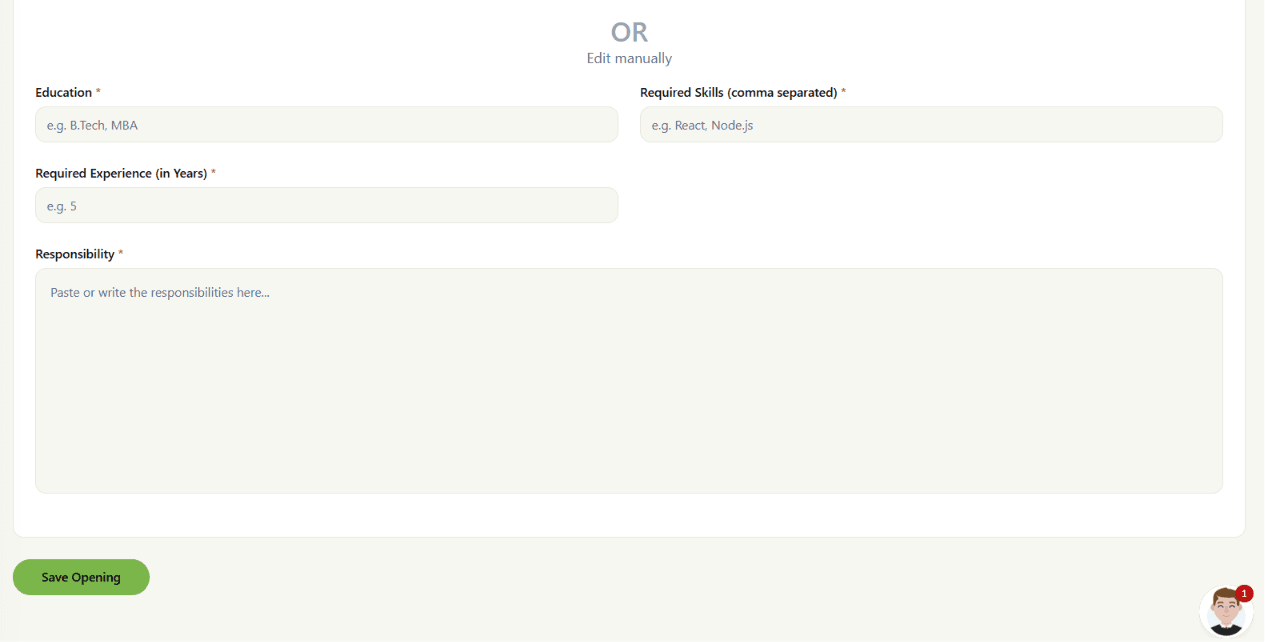
Alternatively, If you prefer not to upload a file, you can fill in the job details manually using the fields below the upload area.
Manual entry fields:
•Education e.g. B.Tech, MBA
•Required Skills Comma-separated, e.g. React, Node.js
•Required Experience (in Years) e.g. 5
•Responsibility Paste or write out the key responsibilities for the role
The Responsibility field is particularly important — iRankr's AI uses it to evaluate and score each candidate's resume based on how well their experience aligns with what the role requires.
Settings Tab
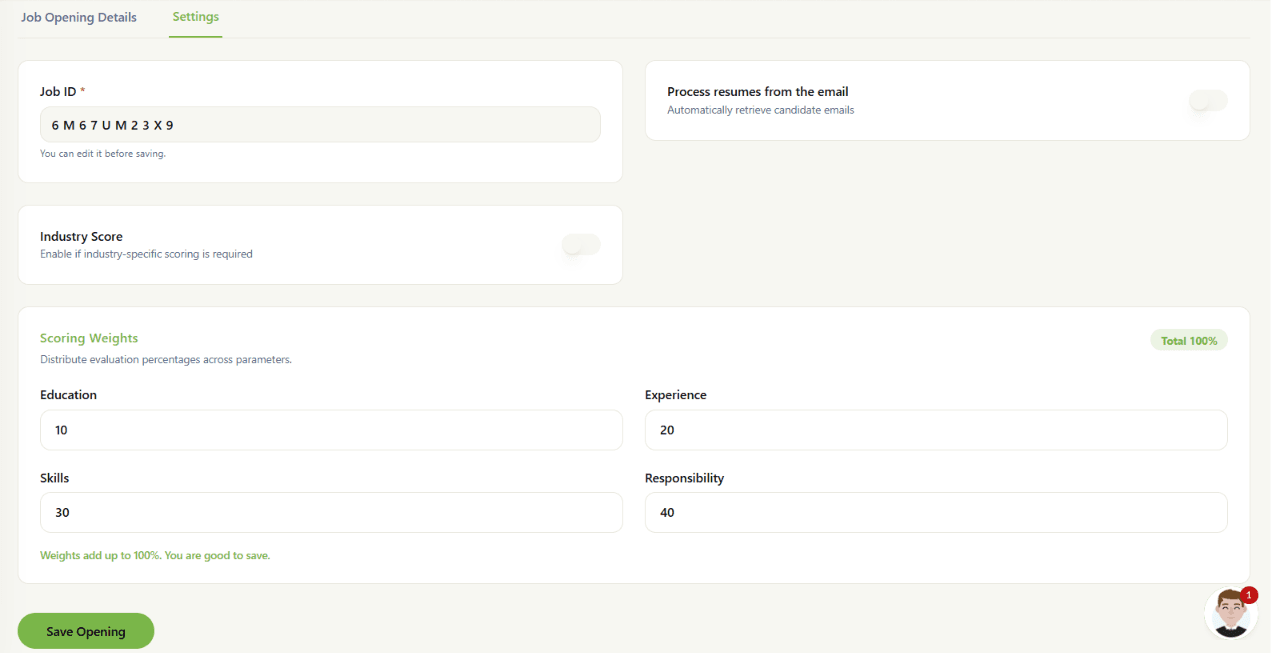
The Settings tab lets you configure how iRankr processes and scores candidates for this opening.
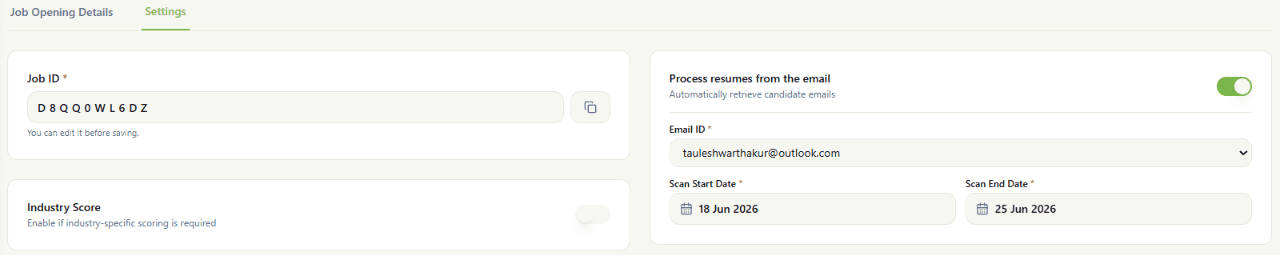
Job ID
A unique Job ID is automatically generated for each opening. You can edit it before saving if needed.
This job ID field can be used to post the job on social media to allow automated resume parsing from your email to correct job role. Refer to this section for more details.
Process Resumes from Email
Toggle this option on to allow iRankr to automatically retrieve candidate resumes from a connected email inbox. When enabled, any resumes received at the linked email address are pulled in and added to the candidate pipeline for this opening — removing the need for manual resume uploads.
Refer here for more details on how to set up emails Add Email Account for Resume Fetching
Industry Score
Enabling the Industry Score adds an additional layer of evaluation that benchmarks candidates against industry standards. This helps assess how well a candidate's functional background and past companies aligns with the specific sector your company operates in.
Click here to know how the industry score works FAQ Link for Industry Score
Scoring Weights
The Scoring Weights section allows you to control how much each evaluation criterion contributes to a candidate's overall score. Distribute the percentages across the four parameters to reflect what matters most for the role.
Available parameters:
•Education Recommended default: 10%
•Experience Recommended default: 20%
•Skills Recommended default: 30%
•Responsibility Recommended default: 40%
Note: All four weights must add up to exactly 100% before the opening can be saved.
Saving the Opening
Once all required fields are filled and the scoring weights total 100%, click the Save Opening button at the bottom of the page. The new job opening will appear in your Jobs list and will be ready to receive and evaluate candidates.
How to Add Candidates to a Job
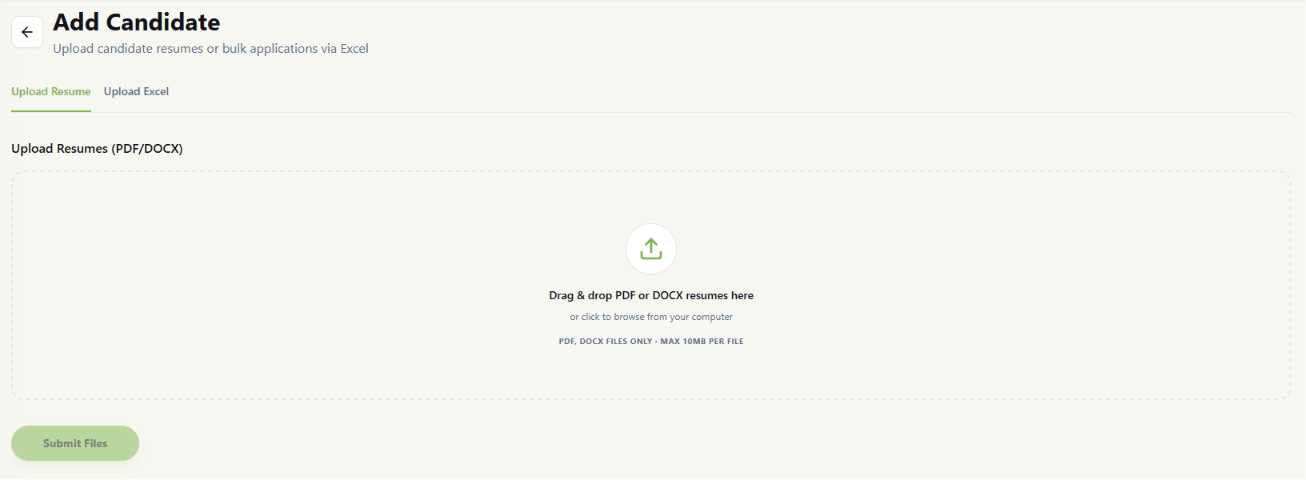
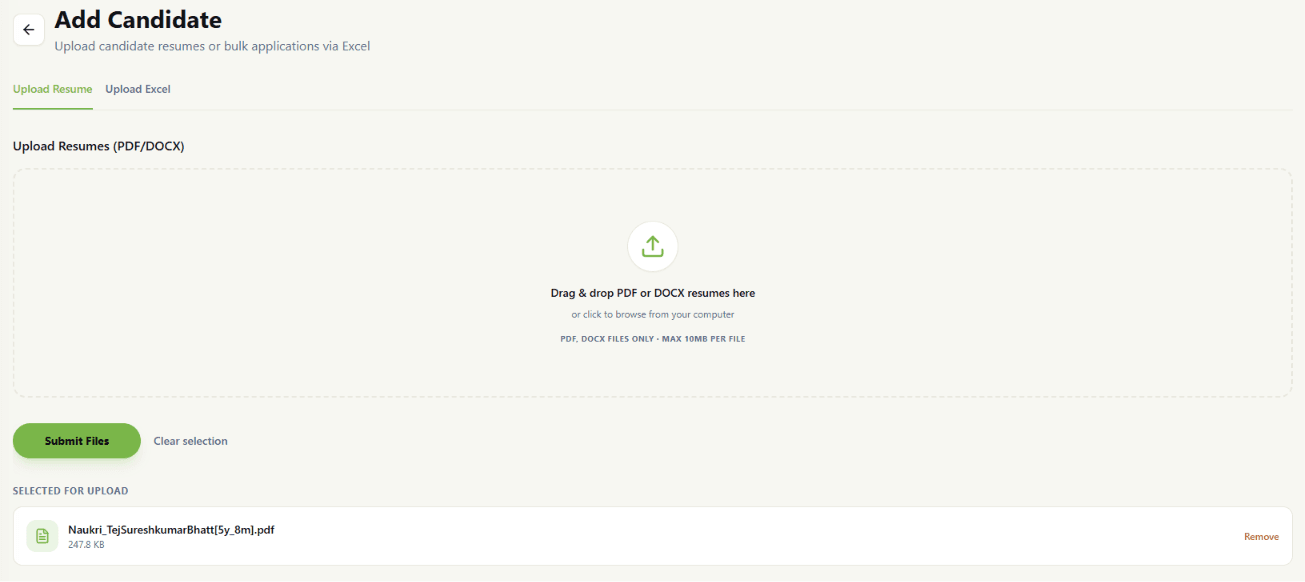
Method 1 — Upload Resume (PDF / DOCX)
Use this option to add candidates one by one, or several at a time, using their resume files.
•File types: PDF or DOCX only
•File size: Max 10 MB per file
•Multiple files: You can add more than one resume at a time
Step 1 Click the Upload Resume tab
This is the default tab when you open Add Candidate.
Step 2 Add your resume files
Drag and drop your resume files into the box, or click inside the box to browse and select files from your computer.
Step 3 Check your selected files
The files you picked appear under Selected for Upload, along with their name and size.
Click Remove next to a file to take it out, or click Clear Selection to remove all picked files at once.
Step 4 Click Submit Files
Once your files are ready, click Submit Files to upload them.
Step 5 Wait for processing
A Processing Status section appears, such as "Processing 1 file...". iRankr reads each resume, pulls out the candidate's details, and scores them against the job. Wait for this to finish.
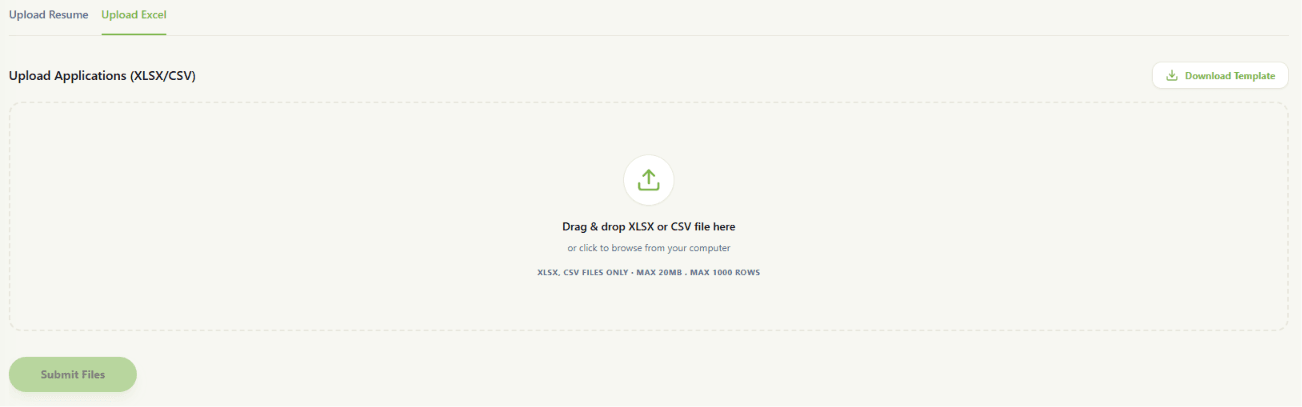
Method 2 — Upload Excel (XLSX / CSV)
Use this option to add many candidates at once from a single spreadsheet, which is useful for bulk applications.
•File types: XLSX or CSV only
•File size: Max 20 MB
•Rows: Max 1,000 rows, meaning up to 1,000 candidates per file
Step 1 Click the Upload Excel tab
Switch to this tab to begin a bulk upload.
Step 2 Download the template
Click Download Template first. This gives you a ready-made sheet with the correct columns already set up.
Step 3 Fill in the template
Add your candidates' details into the template. Keep the column titles exactly as they are.
Step 4 Upload your file
Drag and drop your completed XLSX or CSV file into the box, or click to browse and select it.
Step 5 Click Submit Files
iRankr will read each row in your file and add those candidates to the job.
Method 3 — Fetch Candidates via Email
iRankr can read resumes straight from your email inbox. When candidates email their resume, iRankr finds those emails, takes out the resume file, and adds it to the right job automatically, with no manual download needed.
How it works, in simple terms:
•1. You connect your email account to iRankr once
•2. You turn on email fetching for a job and pick a date range
•3. iRankr checks your inbox for emails about that job
•4. It pulls the resume from each matching email and adds the candidate to the job
•5. Each resume is scored, just like a normal upload
Step 1 Connect your email
Go to your Profile settings and add an email connection.
•Supported providers: Gmail and Microsoft 365 (Outlook)
•Gmail note: Use an app password, not your normal login password
Note: You only need to connect an email account once. After that, iRankr can use it for any job opening.
Refer here for more details on on how to set up emails [Set up Email Link](/helpdocs#add-email-account-for-resume-fetching)
Step 2 Turn it on for a job
When you create or edit a job opening, go to the Settings tab and configure the following:
•Process resumes from the email: Turn this toggle on
•Email ID: Pick which connected email account to use
•Scan Start Date / Scan End Date: Set the date range iRankr should look within. It will only check emails received inside these dates
Note: Keep the date range short, such as 1 to 2 weeks. A very long range can be slow, since there are many emails to read.
Step 3 How iRankr matches emails to the job
iRankr reads the email subject line to figure out which job it belongs to:
•First: It looks for the job's Job ID in the subject line
•If not found: It looks for the job name in the subject line instead
Candidates, or job boards like Naukri, should include the Job ID or job name in the email subject for matching to work correctly.
Step 4 Getting the resumes
For every matching email, iRankr takes the resume attachment (PDF or DOCX, up to 15 MB), checks that the file is safe, then adds the candidate to that job and scores them.
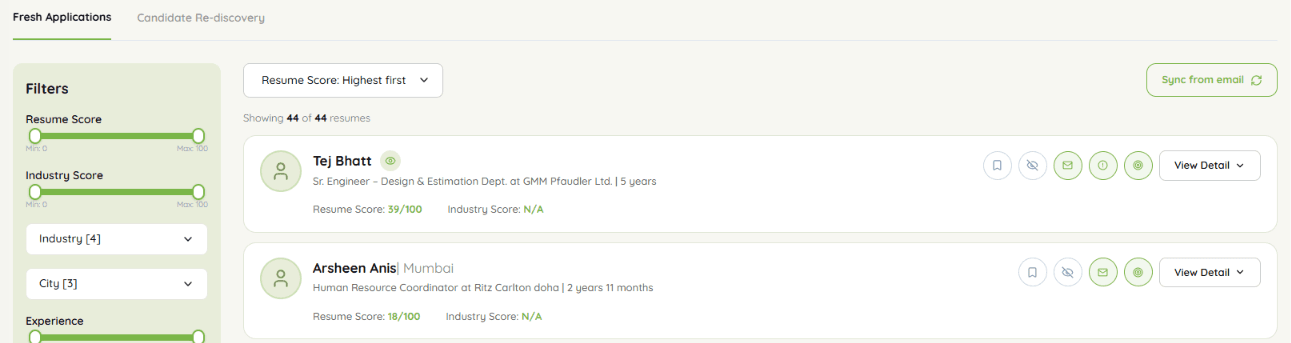
This can run automatically on a schedule, or you can pull new emails right now using the Sync from Email button on the job's Fresh Applications tab.
Good to Know
Every uploaded resume, whichever method you use, is also saved in your Candidate Pool, so it can be found again later through Re-discovery. Always use the provided template for Excel uploads, since wrong column names may cause errors. Keep in mind that each processed resume uses credits from your plan, no matter which of the three methods it came through.
If emails are not coming in, check the following:
•• The job is active
•• The email account is still connected and the password or login is valid
•• The email date falls inside your scan date range
•• The subject line includes the Job ID or job name
•• The resume file type is allowed (PDF or DOCX)
How to Update Your Company Profile
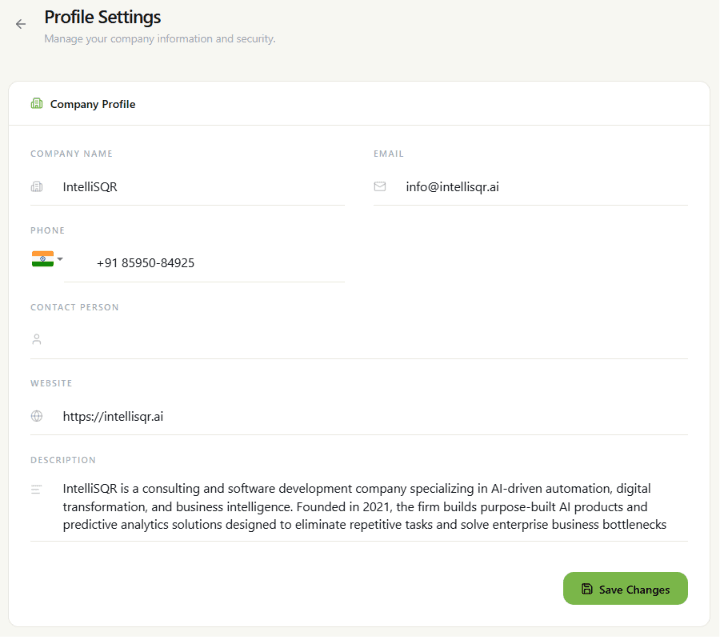
The Profile Settings page allows you to manage your company's information that is used across iRankr. Keeping this information accurate ensures candidates and evaluations reflect the correct company details.
Updating the Company Profile
Step 1 Go to Profile Settings
Navigate to Profile Settings from the main menu. The page will open with the Company Profile section displaying your current saved information.
Step 2 Update your company details
Review and edit the following fields as needed:
•Company Name: The registered name of your organisation
•Email: The primary contact email address for your company
•Phone: Your company's contact number, including the country code
•Contact Person: The name of the primary point of contact at your organisation
•Website: Your company's official website URL
•Description: A brief summary of what your company does — this is used by iRankr when evaluating candidates against your company's context
Note: The Description field is particularly important as iRankr uses it to provide context during candidate evaluation. Make sure it accurately reflects your company's domain and focus areas.
Step 3 Save your changes
Once all fields are updated, click the Save Changes button at the bottom right of the page. Your updated company profile will be applied across all active job openings.
Note: Changes to the company description may influence how candidates are scored against future job openings. Review it carefully before saving.
How to Use the Candidate Pool
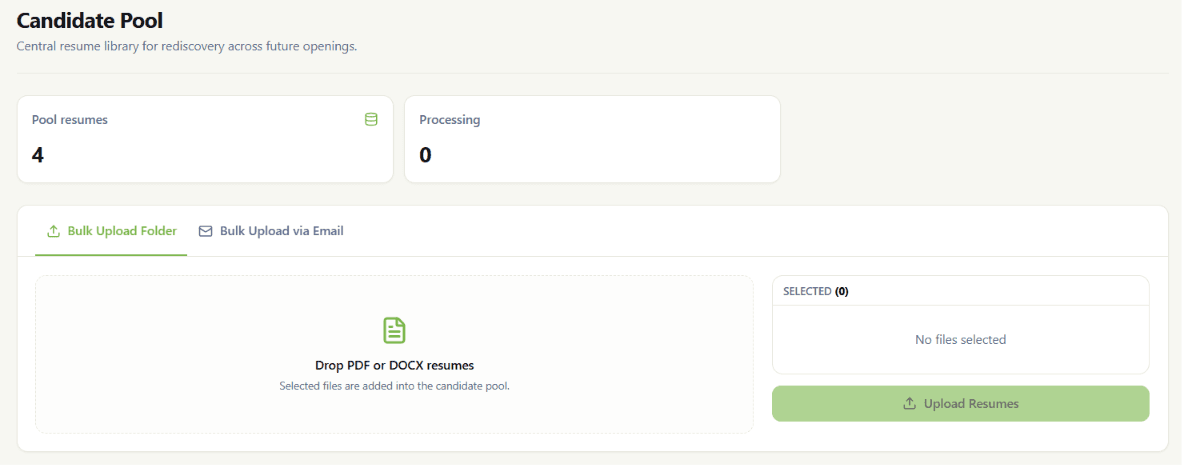
The Candidate Pool is a central resume library that stores all uploaded candidate resumes for rediscovery across future job openings. From here, you can add resumes in bulk, either by uploading files directly or by fetching them from a connected email account, and manage the resumes already stored in the pool.
Understanding the Overview
At the top of the Candidate Pool page, two summary cards show the current status of your pool:
•Pool resumes: The total number of resumes currently stored in the candidate pool
•Processing: The number of resumes currently being processed and not yet added to the pool
Tab 1 — Bulk Upload Folder
Step 1 Open the Bulk Upload Folder tab
On the Candidate Pool page, select the Bulk Upload Folder tab. This is the default view for adding resumes directly from your device.
Step 2 Add resume files
Drag and drop PDF or DOCX resume files into the upload area, or click inside the zone to browse and select files from your device. You can select multiple files at once.
Note: Selected files will appear under the Selected section on the right, along with a count of how many files are ready to upload.
Step 3 Upload the resumes
Once your files are selected, click the Upload Resumes button. The selected resumes will be added directly into the candidate pool for future rediscovery.
Tab 2 — Bulk Upload via Email
Step 1 Switch to the Bulk Upload via Email tab
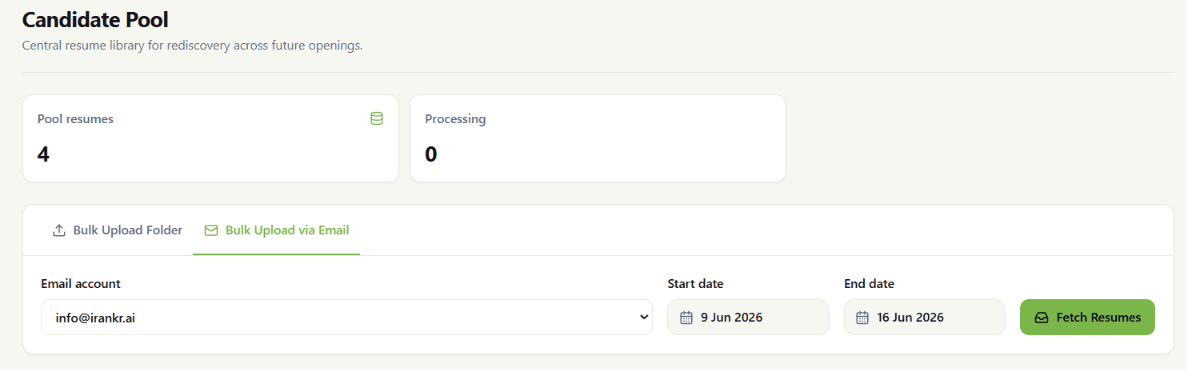
Select the Bulk Upload via Email tab to fetch resumes that have been received at a connected email account.
Step 2 Select the email account
Choose the relevant email account from the Email account dropdown. This should be the inbox where candidate resumes are being received.
Step 3 Set the date range
Specify the Start date and End date to define the period from which resumes should be fetched.
Step 4 Fetch the resumes
Click the Fetch Resumes button. iRankr will retrieve resumes received at the selected email account within the chosen date range and add them to the candidate pool.
Managing Resumes in the Pool
Below the upload section, the Resumes table lists every resume currently stored in the candidate pool, along with key details for each candidate:
•Candidate: The candidate's name and location
•Contact: The candidate's email address and phone number
•Experience: Total years of experience, as extracted from the resume
•Source: Where the resume was added from, such as a folder upload
•Added: The date the resume was added to the pool
•Resume: Options to View the resume or delete it from the pool
Note: Use the View button to open a candidate's resume, or the delete icon to permanently remove it from the candidate pool.
How to Change Your Password
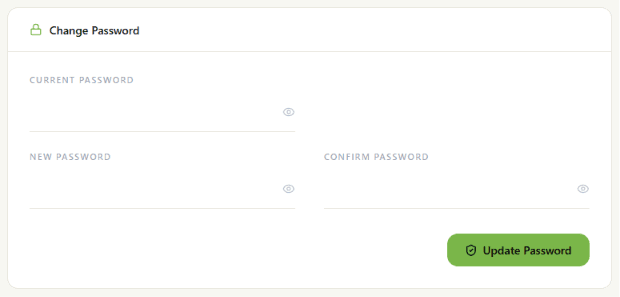
The Change Password section on your Profile page lets you update your account password. This is recommended periodically, or immediately if you suspect your account credentials may have been compromised.
Updating Your Password
Step 1 Open your Profile
Click the account icon in the top right corner of the screen, then select Profile from the dropdown menu.
Step 2 Locate the Change Password section
Scroll down to the Change Password section on the Profile page.
Step 3 Enter your current password
In the Current Password field, enter your existing password. Click the eye icon to reveal the text if you need to verify what you have typed.
Step 4 Enter your new password
In the New Password field, enter the password you would like to set. Then re-enter the same password in the Confirm Password field to verify it.
Note: Make sure both the New Password and Confirm Password fields match exactly before proceeding.
Step 5 Update the password
Click the Update Password button to save your new password. You will need to use this new password the next time you log in.
How to Delete Your Account
The Delete Account section on your Profile page allows you to permanently remove your iRankr account. This action is irreversible, so it should only be used when you are certain you no longer wish to use the platform.
Deleting Your Account
Step 1
Open your Profile
Click the account icon in the top right corner of the screen, then select Profile from the dropdown menu.
Step 2
Scroll to the Delete Account section
Scroll down to the bottom of the Profile page until you reach the Delete Account section, highlighted in red.
Step 3
Review what will be deleted
Read the warning message carefully. Deleting your account will permanently remove all associated data, including candidates, resumes, and rankings.
•Warning: Once your account is deleted, this action cannot be undone. There is no way to recover your data, candidates, resumes, or rankings after deletion.
Step 4
Click Delete My Account
If you are certain you want to proceed, click the Delete My Account button.
Step 5
Confirm in the pop-up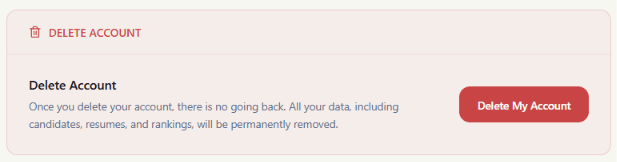
A confirmation pop-up will appear, asking "Are you sure you want to delete your account?" and reminding you that all candidates, resumes, and rankings will be deleted, and access will be permanently lost.
Click Cancel to stop the process, or click Delete to permanently confirm and proceed with account deletion.
Note: Consider exporting or backing up any important candidate data before confirming, as it cannot be retrieved once deleted.
How to View Usage and Upgrade Your Plan
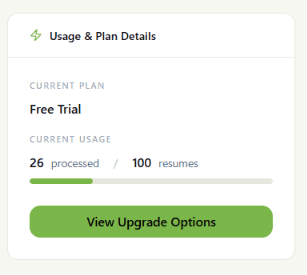
The Usage & Plan Details card on your Profile Settings page shows your current subscription plan and how much of your monthly resume processing quota has been used. From here, you can also view and choose from available upgrade options.
Checking Your Current Usage
Step 1 Open Profile Settings
Click the account icon in the top right corner of the screen, then select Profile from the dropdown menu. This will open the Profile Settings page on the Company Profile tab.
Step 2 Locate the Usage & Plan Details card
On the right side of the Company Profile tab, you will see the Usage & Plan Details card, showing the following information:
•Current Plan: The subscription plan you are currently on, such as Free Trial
•Current Usage: The number of resumes processed so far against your total monthly limit, shown with a progress bar
Note: Once your usage approaches the monthly limit, consider upgrading to avoid interruptions in resume processing.
Upgrading Your Plan
Step 1 Click View Upgrade Options
On the Usage & Plan Details card, click the View Upgrade Options button. This will display the available subscription plans.
Step 2 Compare the available plans
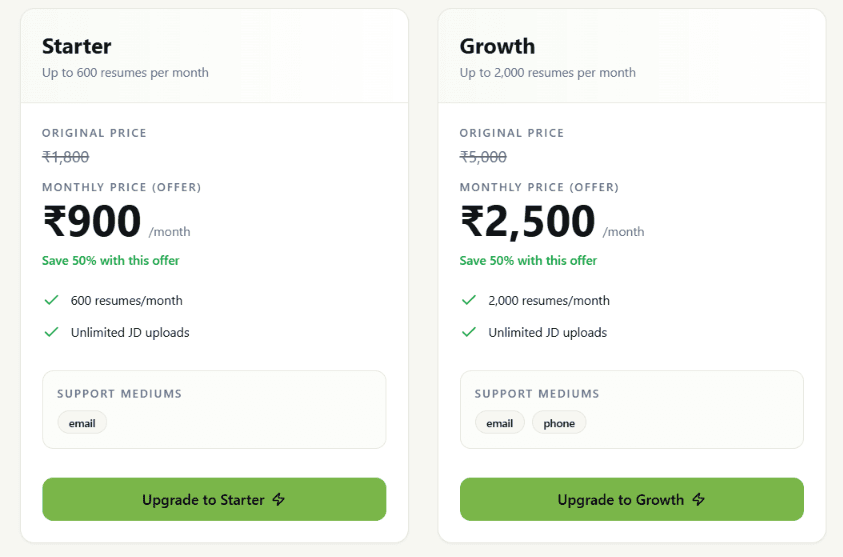
Review the plans on offer, along with their monthly resume limits, pricing, and included features:
•Starter: Up to 600 resumes per month, with unlimited JD uploads and email support
•Growth: Up to 2,000 resumes per month, with unlimited JD uploads and email plus phone support
Note: Listed prices reflect any active limited-time offers. Original pricing is shown struck through for comparison.
Step 3 Choose a plan to upgrade
Once you have decided which plan suits your needs, click the corresponding Upgrade button, such as Upgrade to Starter or Upgrade to Growth, to proceed with the upgrade.
Step 4 Review the Order Summary
An Order Summary will be displayed, showing the plan you selected along with its resume limit, original price, and the discounted monthly price (if an offer is active).
The summary also confirms the following terms:
•Billing: You will be billed monthly to your registered payment method
•Cancellation: You can cancel anytime, with no long-term commitment
•Activation: Your subscription starts immediately after payment
Note: Review the selected plan and pricing carefully before proceeding, as the subscription activates as soon as payment is completed.
Step 5 Proceed to payment
Click the Proceed to Payment button to continue. By doing so, you agree to iRankr's Terms of Service and Subscription Agreement. Complete the payment process to activate your new plan.
How to Get Support
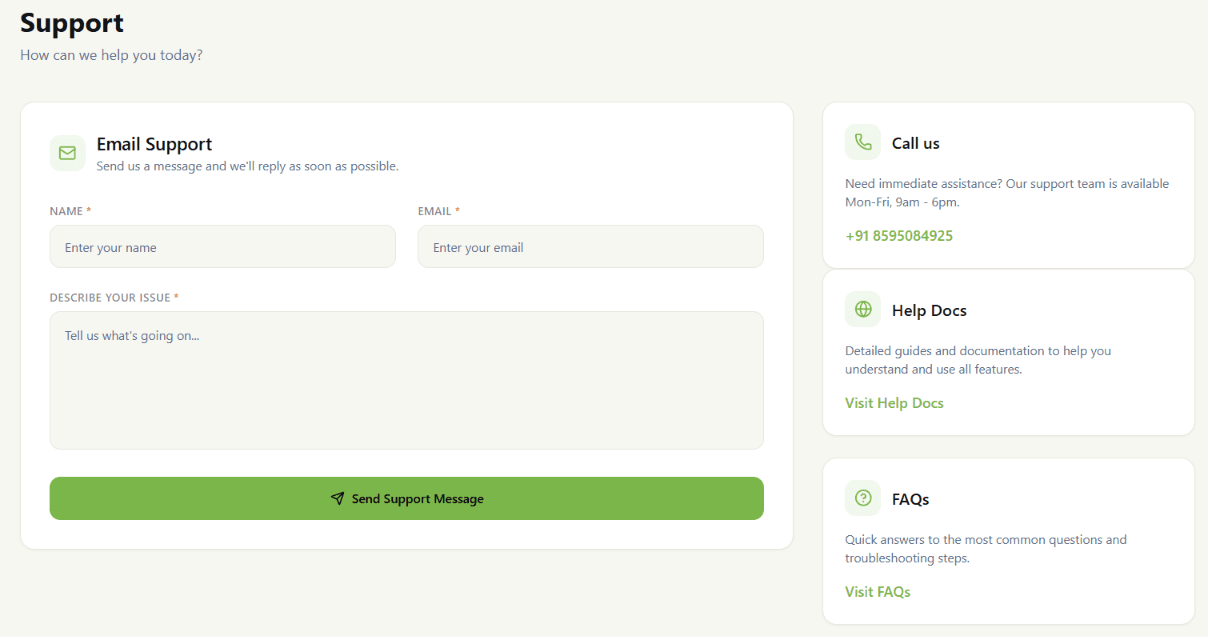
The Support page gives you several ways to get help with iRankr, including sending an email message to the support team, calling for immediate assistance, or browsing self-service resources like Help Docs and FAQs.
Sending an Email Support Request
Step 1 Open the Support page
Click the account icon in the top right corner of the screen, then select Support from the dropdown menu.
Step 2 Fill in your details
Under the Email Support card, enter the following information:
•Name: Your full name
•Email: An email address where the support team can reach you
•Describe Your Issue: A clear description of the problem you are facing or the help you need
Note: The more detail you provide in the issue description, the faster the support team can understand and resolve your query.
Step 3 Send the message
Once all fields are filled in, click the Send Support Message button. Your request will be sent to the support team, who will reply as soon as possible.
Other Ways to Get Help
Alongside the email form, the Support page offers a few additional options on the right side of the screen:
Help Docs
Click Visit Help Docs to access detailed guides and documentation covering all of iRankr's features.
FAQs
Click Visit FAQs to find quick answers to the most common questions and troubleshooting steps.
How to Manage Recruiters
A recruiter is a team member you add to your iRankr account. Recruiters help you review job applications and shortlist good candidates. If you don't work alone, adding your team lets everyone use the same account and share the work of reviewing resumes.
Viewing Your Recruiters
Step 1 Open Profile Settings
Click the account icon in the top right corner of the screen, then select Profile from the dropdown menu.
Step 2 Switch to the Recruiters tab
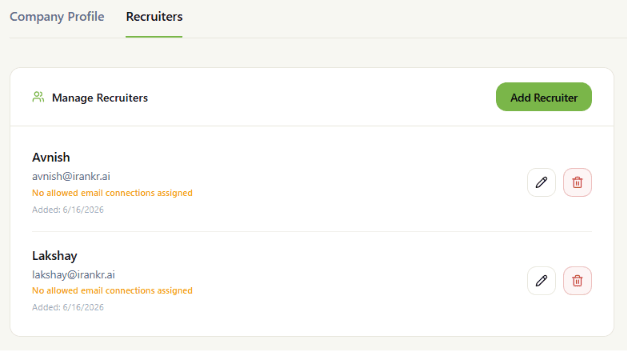
On the Profile Settings page, click the Recruiters tab next to Company Profile. This opens the Manage Recruiters section, listing every recruiter currently on your team.
Each recruiter entry shows their name, email address, the email connections assigned to them, and the date they were added. If a recruiter has an email connection assigned, it appears as a green tag with the email address, such as info@irankr.ai.
Note: If a recruiter shows "No allowed email connections assigned" in orange, it means they don't have an email account linked yet. Link one so that they can use it to fetch resumes from the email.
Adding a Recruiter
Step 1 Click Add Recruiter
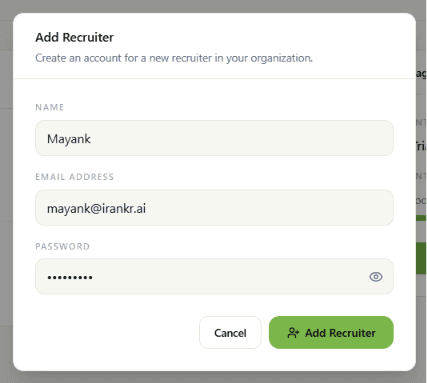
On the Manage Recruiters card, click the Add Recruiter button in the top right corner. This opens the Add Recruiter pop-up, where you can create an account for a new recruiter in your organization.
Step 2 Enter their details
Fill in the following fields:
•Name: The recruiter's full name
•Email Address: The email address they will use to log in, e.g. mayank@irankr.ai
•Password: A password for their account. Click the eye icon to reveal it and confirm it was entered correctly
Step 3 Save the recruiter
Click the Add Recruiter button to create the account, or Cancel to close the pop-up without saving. The new recruiter will now appear in your team list and can be assigned email connections.
Editing Recruiter Access
Step 1 Click the edit icon
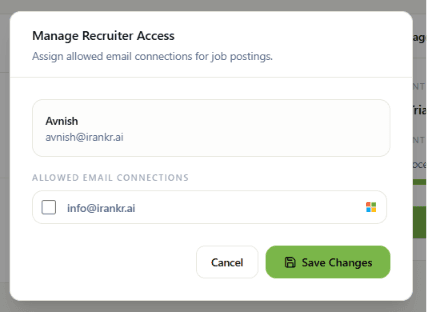
Next to the recruiter you want to update, click the pencil icon. This opens the Manage Recruiter Access pop-up.
Step 2 Assign allowed email connections
The pop-up displays the recruiter's name and email at the top, followed by a list of Allowed Email Connections. Select the checkbox next to each email account you want this recruiter to have access to for job postings.
Step 3 Save your changes
Click Save Changes to apply the updated access, or click Cancel to close the pop-up without making changes.
Removing a Recruiter
Step 1 Click the delete icon
Next to the recruiter you want to remove, click the bin icon.
Step 2 Confirm the removal
Confirm the action to permanently remove the recruiter from your team. They will no longer have access to the account.
How to Use Candidate Re-discovery
Candidate Re-discovery finds the best matching candidates for a job from your entire resume library, not just the people who applied to that specific job. Every resume you have ever uploaded stays saved, and Re-discovery searches all of them to bring the top matches to the front.
Fetching Top Candidates
Step 1 Open the Candidate Re-discovery tab
Open the relevant job opening and click the Candidate Re-discovery tab, next to Fresh Applications.
Step 2 Set the number of candidates
In the Candidates box, type how many top candidates you want to see, for example 5.
Step 3 Click Fetch Top Candidates
Click the Fetch Top Candidates button. iRankr will score every resume in your library against this job and display the best matches first.
A line such as "Showing 5 of 123 resumes" will appear, indicating it picked the top 5 candidates out of 123 saved resumes.
Note: Each scored resume uses credits from your plan, so set the candidate count to what you actually need.
Reading a Candidate Card
Each candidate card displays the following information:
•Name and current role: Their job title and the company they currently work at
•Experience: How long they have worked, shown next to their role
•Resume Score: How well the resume fits this job, out of 100. Higher is better
•Industry Score: How close their past industry is to your company's industry.
Using the Action Buttons
On the right side of each candidate card, you can take the following actions:
•Bookmark / Shortlist: Save a good candidate for later
•Ignore: Hide a candidate you don't want to consider
•Email: Send a message directly to the candidate
•View Detail: Open the full resume along with detailed scoring
Note: Candidates you shortlist or ignore are remembered. The next time you fetch top candidates, these are skipped and fresh new matches are brought in instead.

Refining and Sorting Results
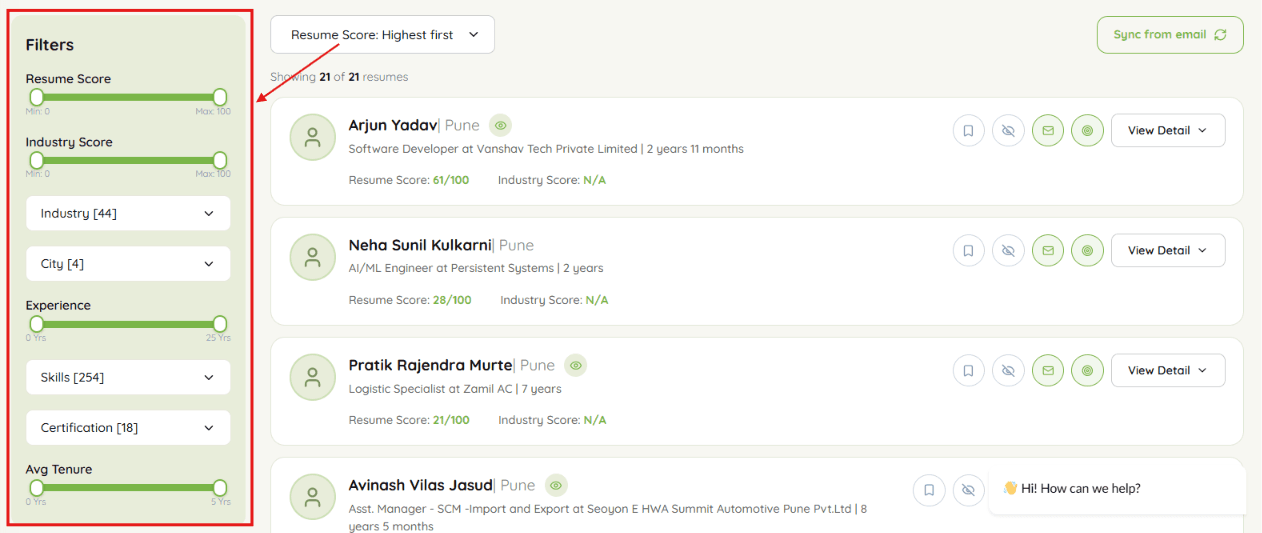
Use the Refine Results panel on the left side of the page to narrow down the candidate list:
•Resume Score / Industry Score: Set a minimum and maximum score using the sliders
•Industry: Filter candidates by industry type
•City: Filter candidates by location
•Experience: Filter by years of work experience
•Skills: Filter by specific skills
•Certification: Filter by certifications held
•Avg Tenure: Filter by how long candidates typically stay at a job
To change the order in which candidates are displayed, use the Resume Score: Highest first dropdown at the top of the list.
How to Send an Email to a Candidate
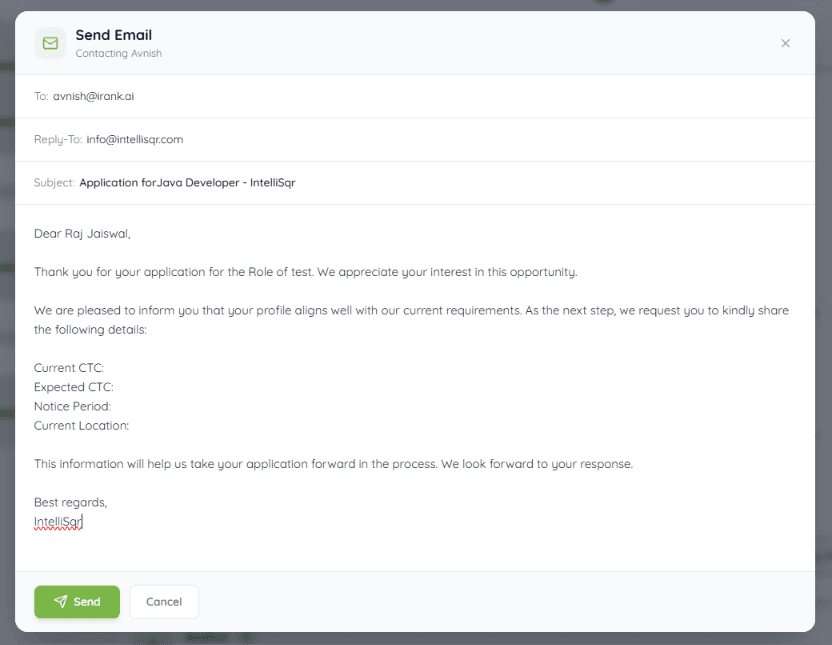
When you find a good candidate, you can email them directly from iRankr without leaving the platform. Clicking the Email button on a candidate card opens the Send Email window, pre-filled with the candidate's details and a ready-made message.
What You See in the Send Email Window
•To: The candidate's email address, filled in for you automatically
•Reply-To: The address where the candidate's reply will go, usually your email or your company email, so replies come back to you
•Subject: The title of the email. A default subject is added for you, but it can be changed
•Message body: The email text. A ready-made message is filled in, and you can edit any part of it
The Default Message
iRankr writes a starter message for you that greets the candidate by name and asks for a few common details needed to move the application forward:
•Current CTC: Their current salary
•Expected CTC: Their expected salary
•Notice Period: How long they would need before joining
•Current Location: Where they are currently based
You can keep this message as it is, change parts of it, or write your own from scratch.
Sending the Email
Step 1 Open the Send Email window
Click the Email button on the candidate card you want to contact. This opens the Send Email window, addressed to that candidate.
Step 2 Check the To and Subject fields
Confirm that the To address and the Subject line are correct before proceeding.
Step 3 Edit the message if needed
Review the pre-filled message and make any changes you want, such as updating the role name or personalising the greeting.
Note: Always read through the message once before sending, so names and details are correct.
Step 4 Click Send
Once everything looks correct, click the Send button to deliver the email to the candidate.
To close the window without sending, click Cancel or the X icon at the top right.
Good to Know
The candidate's reply will come back to the Reply-To address shown in the window, not to iRankr directly. Make sure this address is one you actively monitor.
How to Explore the TalentPool
The Explore page under TalentPool lets you search across your entire candidate library to find people who match a specific role, even outside of a particular job opening. You can search, filter, and view detailed candidate profiles, including an AI-generated breakdown of their strengths and gaps.
Searching for Candidates
Step 1 Open Explore
From the left sidebar, click TalentPool to expand it, then select Explore.
Step 2 Search for a role or keyword
Use the Search candidates box at the top to search by role, skill, or keyword. You can also select a specific job from the dropdown on the right, such as Java Developer - iRankr, to search candidates against that job's criteria.
Using Filters
Use the Filters panel on the left to narrow down your search results:
•Resume Score: Set a minimum and maximum score using the slider
•Industry Score: Set a minimum and maximum score using the slider
•Industry: Filter candidates by industry type
•City: Filter candidates by location
•Experience: Filter by years of work experience
•Skills: Filter by specific skills
•Certification: Filter by certifications held
•Avg Tenure: Filter by how long candidates typically stay at a job
Viewing Candidate Details
Step 1 Open a candidate's details
Click Hide Detail / View Detail on a candidate card to expand their full profile.
Step 2 Review their information
The expanded view shows the candidate's contact details, skills, education, and employment history, along with their Resume Score and Industry Score at the top.
Step 3 Take an action
At the bottom of the candidate's profile, you can choose from the following options:
•Send Email: Open the email window to contact the candidate directly
•Employment Gaps: View any gaps identified in the candidate's employment history
•Key Strengths & Gaps: View how well the candidate fits the job
•Delete: Remove the candidate from your results, shown as the red bin icon
Understanding Key Strengths & Gaps
Clicking Key Strengths & Gaps opens a pop-up of the candidate, broken into two sections:
•Key Strength: A summary of what makes the candidate a good fit, such as relevant experience or qualifications
•Gaps with Job Description: A list of specific mismatches between the candidate's profile and the job requirements, such as missing skills or differing educational qualifications
Note: Use this breakdown to quickly judge whether a candidate is worth shortlisting, without having to read their entire resume manually.
How to Expedite Shortlisted Candidates
Under TalentPool, the Shortlisted page shows all the candidates you have saved as good fits for a job. This is your short list of top people, which you can review, filter, and send forward to a Technical Manager for further evaluation.
Viewing Your Shortlisted Candidates
Step 1 Open the Shortlisted page
From the left sidebar, click TalentPool to expand it, then select Shortlisted. Note that each job opening has its own separate shortlist.
Step 2 Review the candidate list
Each candidate card shows their name, city, current role, experience, Resume Score, and Industry Score, in the same format used across other TalentPool pages.
Filtering and Sorting
Use the Filters panel on the left to narrow your shortlist:
•Resume Score: Set a minimum and maximum score using the slider
•Industry Score: Set a minimum and maximum score using the slider
•Industry: Filter candidates by industry type
•City: Filter candidates by location
•Experience: Filter by years of work experience
•Skills: Filter by specific skills
•Certification: Filter by certifications held
•Avg Tenure: Filter by how long candidates typically stay at a job
Use the Resume Score: Highest first dropdown at the top of the list to change the sort order.
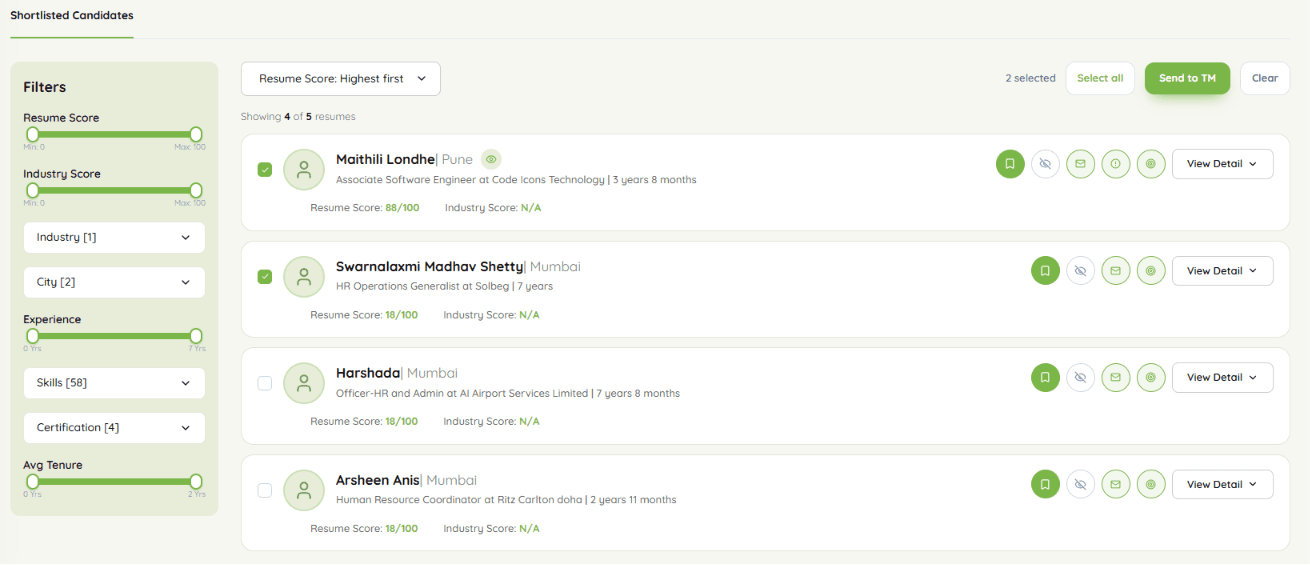
Selecting Candidates
In the top right of the candidate list, you can select which candidates to act on:
•Checkbox: Tick the checkbox next to a candidate's name to select them
•Select all: Click to select every candidate currently shown in the list
•Clear: Click to unselect all currently selected candidates
A counter such as "2 selected" shows how many candidates you have picked. Once at least one candidate is selected, the Send to TM button becomes active.
Sending Candidates to a Technical Manager
After shortlisting, you can send your top picks to a Technical Manager (TM) for review. The TM is the person who checks whether a candidate is the right fit for the technical role.
Step 1 Select the candidates to send
Tick the checkbox next to each candidate you want to send.
Step 2 Click Send to TM
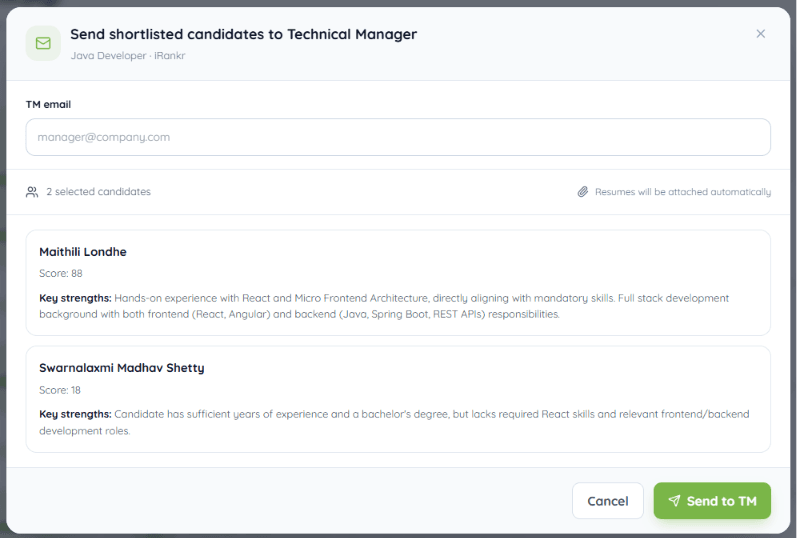
Click the Send to TM button. The Send shortlisted candidates to Technical Manager window will open.
Step 3 Enter the TM's email address
In the TM email field, type the manager's email address, for example manager@company.com.
Step 4 Review the candidate list in the window
Check the candidates listed inside the window before sending. Each candidate card shows:
•Score: The candidate's resume score
•Key strengths: A short, AI-written explaining why this candidate is a good fit
The window also confirms the number of selected candidates, such as "2 selected candidates", and notes that resumes will be attached automatically, so you don't need to attach anything yourself.
Step 5 Click Send to TM
Once everything looks correct, click Send to TM to deliver the email. To stop without sending, click Cancel or the X icon at the top right.
Good to Know
The Technical Manager receives a single email containing all the selected candidates along with their resumes attached together. The Key strengths note included with each candidate is written automatically, helping the manager quickly understand why each person was shortlisted.
How Ignored Candidates Works
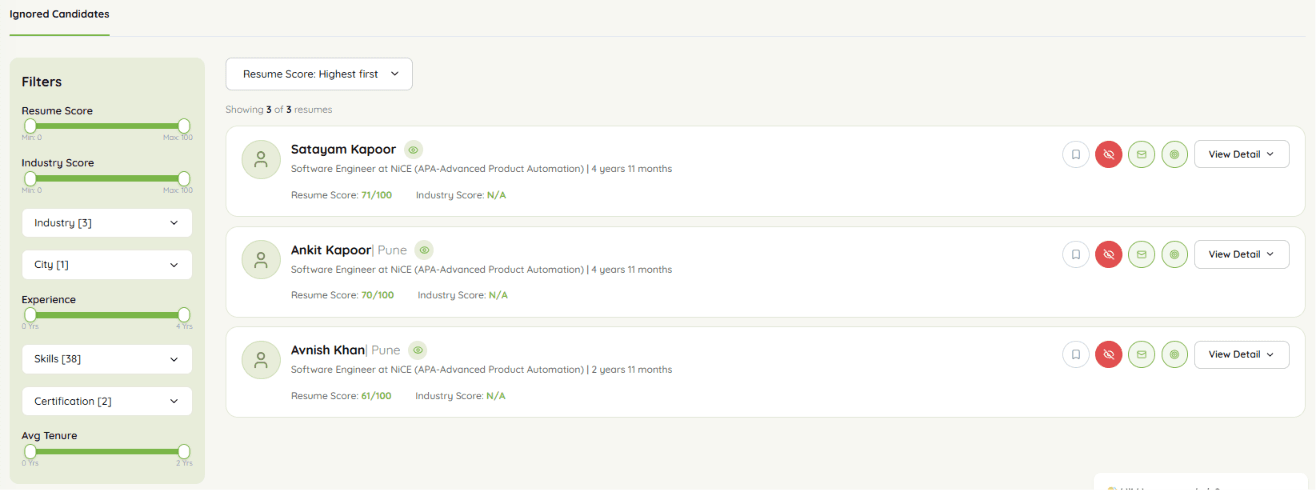
Under TalentPool, the Ignore page shows all the candidates you have hidden for a job. These are people you have decided not to move forward with for that specific opening. When you click the Ignore button on a candidate anywhere in iRankr, they move here, keeping your main lists clean so only the people you still want to consider stay in front.
Note: Each job opening has its own separate ignore list. Ignoring a candidate for one job does not affect their visibility for other openings.
Viewing Ignored Candidates
Step 1 Open the Ignore page
From the left sidebar, click TalentPool to expand it, then select Ignore.
Step 2 Review the candidate list
Each candidate card shows their name, city, current role, experience, Resume Score, and Industry Score, in the same format used across other TalentPool pages.
Filtering and Sorting
Use the Filters panel on the left to find a specific candidate:
•Resume Score: Set a minimum and maximum score using the slider
•Industry Score: Set a minimum and maximum score using the slider
•Industry: Filter candidates by industry type
•City: Filter candidates by location
•Experience: Filter by years of work experience
•Skills: Filter by specific skills
•Certification: Filter by certifications held
•Avg Tenure: Filter by how long candidates typically stay at a job
Use the Resume Score: Highest first dropdown at the top of the list to change the sort order.
Using the Action Buttons
On the right side of each candidate card, you can take the following actions:
•Ignore (red icon): Shown turned on to indicate the candidate is currently ignored. Click it again to remove them from ignore and bring them back into your active lists
•Bookmark / Shortlist: Move the candidate to your shortlist instead
•Email: Send the candidate a message directly
•View Detail: Open the full resume along with detailed scoring
Good to Know
Ignoring a candidate does not delete them. Their resume stays saved in your candidate pool, and you can un-ignore anyone at any time if you change your mind.
During Candidate Re-discovery, ignored candidates are skipped automatically, so the next fetch brings fresh new matches instead of repeating people you have already passed on.
Add Email Account for Resume Fetching
To fetch resumes directly from your email in the Create Opening section, you need to connect your email account in Profile Settings.
Step-by-Step Setup
Step 1: Open Profile Settings
Go to Profile Settings and scroll down to the Email Accounts section.
Step 2: Add Email Account
Click on Add Email.
You will see two provider options:
•Gmail
•Microsoft 365 / Outlook
Select the provider based on your email account.
For Gmail Users
Step 3: Generate App Password
Important:
If you are using Gmail, you cannot use your normal email password. You must generate an App Password.
Follow these steps:
1. Go to your Google Account: https://myaccount.google.com/
2. Click on Security
3. Enable 2-Step Verification (if not already enabled)
4. After enabling, search for App Passwords
5. Click on App Passwords
6. Select:
•App: Mail
•Device: Other (Custom name) → enter something like iRankr
7. Click Generate
8. Google will provide a 16-character password, like:
werr qewe wewe qwwd
This is your App Password.
Step 4: Enter App Password
Paste the generated App Password into the:
•Password / App Password field.
Step 5: Save Changes
Click on Save Changes.
Your Gmail account is now connected successfully.
For Outlook / Microsoft 365 Users
Step 3: Connect Microsoft Account
Important:
If you are using Outlook, Hotmail, Live, or Microsoft 365 email, you do NOT need an App Password.
You can securely connect your account using Microsoft OAuth Login.
Follow these steps:
1. Select Microsoft 365 provider
2. Click Connect Microsoft 365
3. Microsoft login page will open
4. Enter your Microsoft email address
Example:
yourname@outlook.com
5. Click Next
6. Enter your password and complete verification if required
7. You may see a “Stay signed in?” popup Click Yes or No based on your preference
8. After successful login:
•You will be redirected back to iRankr
•Your account will appear under Email Accounts
•Status will show OAuth connected
How to Post a Job on LinkedIn
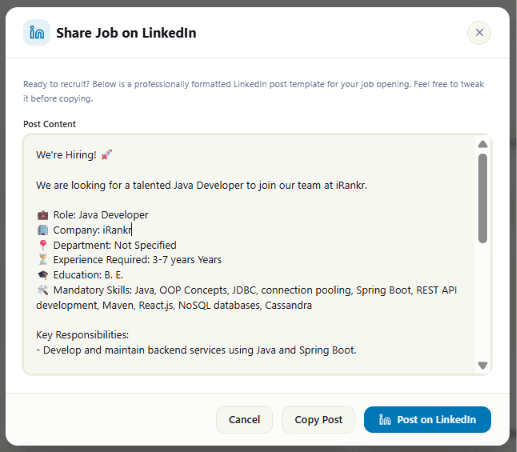
iRankr can turn your job opening into a ready-made LinkedIn post. You don't need to write anything yourself, since iRankr fills in the details for you. You can then copy the post or share it straight to LinkedIn.
Where to Find It
Open the relevant job and go to the Edit Job Opening page. Click the Post on LinkedIn button in the top right corner. A window opens with your post already written.

What Is in the Post
iRankr builds the post using the details already saved in your job opening, including:
•Heading: A "We're Hiring!" heading with emojis
•Role: The job title
•Company: Your company name
•Department: The team, shown as Not Specified if left empty
•Experience Required: Years of experience needed
•Education: The required qualification
•Mandatory Skills: The must-have skills for the role
•Key Responsibilities: The main duties of the role
How to Use It
Step 1 Click Post on LinkedIn
On the Edit Job Opening page, click the Post on LinkedIn button to open the Share Job on LinkedIn window.
Step 2 Read the generated post
Review the post shown in the Post Content box.
Step 3 Edit if needed
Change any words, remove lines, or add your own text directly inside the Post Content box.
Step 4 Choose how to share
You then have two options:
•Copy Post: Copies the text so you can paste it into LinkedIn yourself
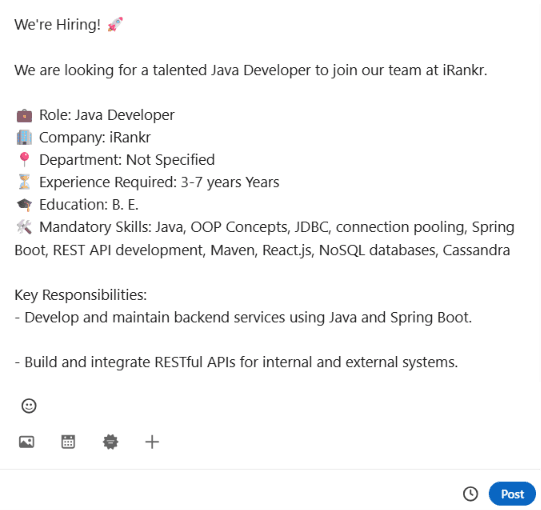
•Post on LinkedIn: Opens LinkedIn directly with the post already filled in and ready to share
Step 5 Close without posting
If you decide not to share the post, click Cancel or the X icon at the top right to close the window.
Good to Know
The generated post is only a starting template, so review and change anything before sharing it. Fields showing "Not Specified" mean that information is missing from your job opening; fill them in on the Edit Job Opening page, then reopen the post to see it updated. The more complete your job opening details are, the better the final post will look.